How to connect Monster Smart lighting takes about five minutes by pairing your fixture to a 2.4 GHz Wi-Fi network through the official Monster Smart app. You’ll plug the unit in, hold the power button for five seconds until the LED blinks rapidly, and confirm your network password on your phone. This method suits anyone setting up LED light strips, smart bulbs, or light bars in a home office or entertainment space.
What you’ll need
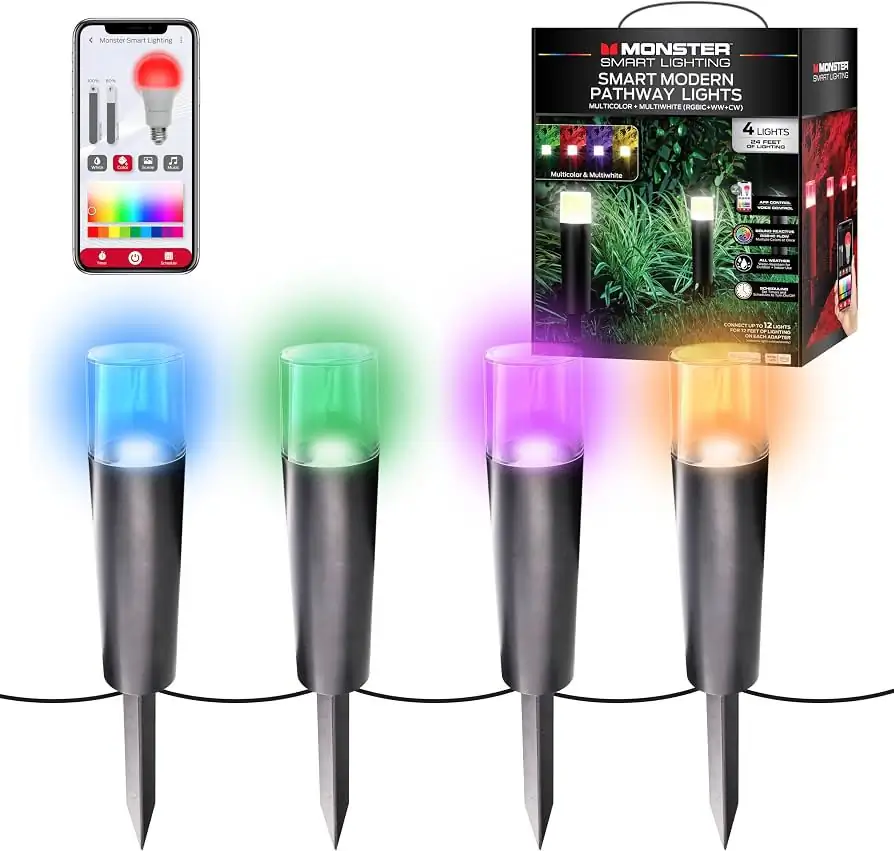 Photo: www.amazon.com on Google
- A Monster Smart LED strip, light bar, or smart bulb.
- A smartphone or tablet running iOS or Android with Bluetooth turned on.
- The Monster Smart app installed from the Apple App Store or Google Play Store.
- A home Wi-Fi network running on a dedicated 2.4 GHz band, along with your network password.
- A standard 120-volt wall outlet within reach of the device’s power adapter.
Using the Monster Smart app gives you full color tuning, but the Tuya Smart app works as a direct software substitute because both share the same underlying platform. Using a 5 GHz Wi-Fi band won’t work; the hardware radio inside the light can’t see or join that frequency.
Step-by-step
- Download the Monster Smart app to your phone and register a free account using your email address.
- Plug the light’s power supply into an outlet within 10 feet of your router for the initial setup.
- Turn the device on, then press and hold the power button on the controller cord for five seconds until the LEDs start flashing rapidly. Careful: A slow pulse means the device entered AP mode instead of EZ mode. If it pulses slowly, release the button, then hold it for another five seconds until it blinks fast.
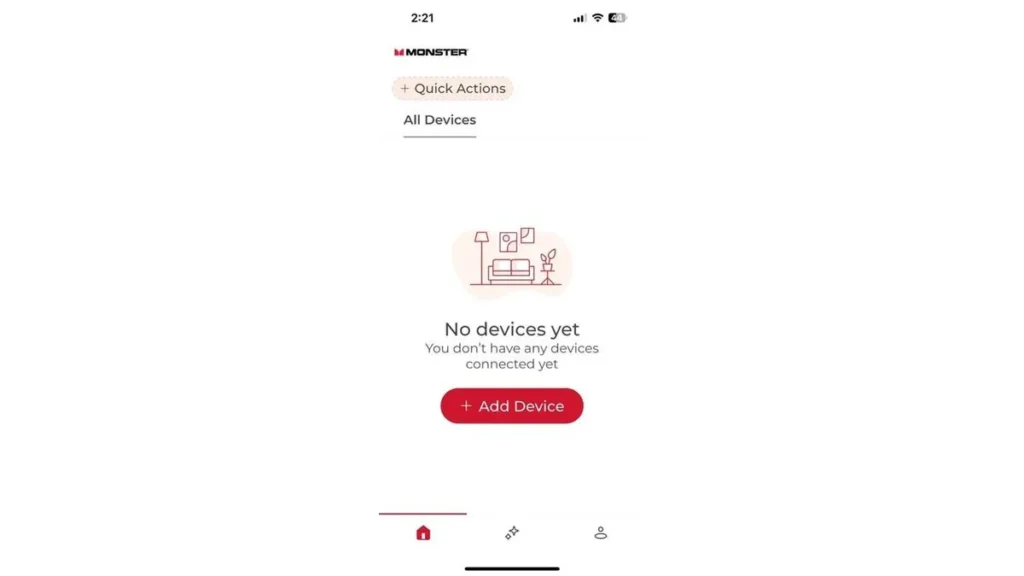
- Open the Monster Smart app, tap the plus icon in the top right corner, and select “Add Device.”
- Select your light model from the list, or allow the app to scan automatically via Bluetooth to detect the flashing fixture. Tip: If your phone runs on a combined Wi-Fi network name, log into your router settings to temporarily split the bands so your phone stays on 2.4 GHz during pairing.
- Enter your 2.4 GHz Wi-Fi network password when prompted, then tap “Next” to begin the countdown timer.
- Wait 30 to 60 seconds while the app links the fixture to your account.
- Rename the light in the app to something clear like “Desk Strip” so voice commands will recognize it later.
Pairing times across setups
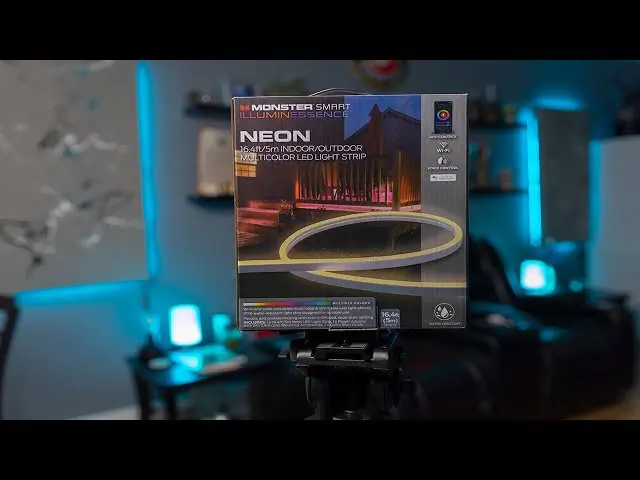 Photo: www.youtube.com on Google
Connecting your lights takes different amounts of effort depending on your home layout and equipment.
| Network setup | Time required | Unique requirement | What to watch |
|---|---|---|---|
| Standard single-band router | 3 to 5 minutes | Phone on 2.4 GHz | Rapid flashing LED indicator |
| Dual-band router with shared SSID | 10 to 15 minutes | Separate Wi-Fi bands in router | Phone switching automatically to 5 GHz |
| Mesh network system | 15 to 20 minutes | Walk away to force 2.4 GHz band | App timing out at 99 percent |
| Multi-pack light strip setup | 20 to 30 minutes | Pair each controller one at a time | Confusing device names in the menu |
It’s safer to pair one fixture right next to your router first before mounting it across the room than to stick everything to the wall and discover the signal fails.
How to tell you did it right
A successful setup shows steady, solid light that stops flashing immediately after the app hits 100 percent. Tapping the color wheel on your phone screen will change the physical bulb or strip color with less than a second of delay. Poor pairing results in an unresponsive fixture, an app showing “Device Offline,” or lights that revert to a factory rainbow cycle after a power flicker. This connection drop happens because home routers drop weak 2.4 GHz signals when physical walls cause radio interference. You can prevent this failure by assigning your lights a static IP address in your router, keeping the controller away from large metal objects, and ensuring your Wi-Fi signal reaches the room at three bars minimum.
Wireless standards and device care
Consumer smart fixtures operate under rules set by the Federal Communications Commission, which governs shared radio frequencies to limit interference with other household electronics. The official FCC equipment authorization database catalogs these low-power 2.4 GHz radios under specific certification numbers printed directly on the Monster power adapter.
Once you complete the setup, clean up by wiping dust off the controller housing and tucking excess cord behind furniture with cable clips. Your digital setup lasts indefinitely until you change your home router, alter your Wi-Fi password, or reset the device manually. If your home uses a hardwired smart light switch on the same wall box, leave that physical switch powered on permanently, or cut power to the smart bulbs completely from the breaker panel before doing any electrical maintenance.
Alternative setup paths
 Photo: monsterilluminessence.com on Google
Manual AP pairing mode
Hold the power button until the LEDs flash slowly, switch your phone to the fixture’s local hotspot signal, and return to the app. This takes about ten minutes, but it bypasses router discovery blocks without changing router settings.
Voice assistant grouping
Link your active Monster Smart account inside the Amazon Alexa or Google Home app. This adds two minutes of work, costs nothing, and allows you to run lights together using room-wide spoken commands instead of manual app toggles.
Physical inline controller
Skip the Wi-Fi pairing entirely and press the built-in plastic buttons along the power lead. This requires zero setup time and no network access, but it strips away custom color palettes, schedules, and smart automation features.
Frequently asked questions
Can Monster Smart lighting connect to a 5 GHz Wi-Fi network?
No. These fixtures only contain a 2.4 GHz wireless receiver. If your router broadcasts both 2.4 GHz and 5 GHz under one name, you must separate them in your router settings or use manual AP mode so the light can connect.
Why is my Monster light blinking and not connecting?
Your light is waiting for a pairing signal from your phone. If the pairing fails, it usually means you entered an incorrect Wi-Fi password or your phone slipped onto a 5 GHz network during the discovery scan.
How do you put Monster lights into pairing mode?
Press and hold the power button on the inline controller for five seconds. Release the button as soon as the lights begin blinking rapidly, which indicates the hardware is ready for standard EZ mode pairing.
What happens if I change my Wi-Fi password?
Your lights will go offline immediately. You must delete the fixture from the mobile app, hold the controller button to restart pairing mode, and run through the connection steps again with your new network password.
Can you control Monster Smart lights without Wi-Fi?
Yes. You can use the physical buttons attached to the power cord to switch basic colors and presets. However, you won’t be able to use phone controls, timers, or voice assistants without an active Wi-Fi connection.
How long does the pairing process take?
Between three and five minutes under normal conditions. If your router uses combined network frequencies or has a firewall blocking new smart devices, troubleshooting the band settings may add ten extra minutes to the job.