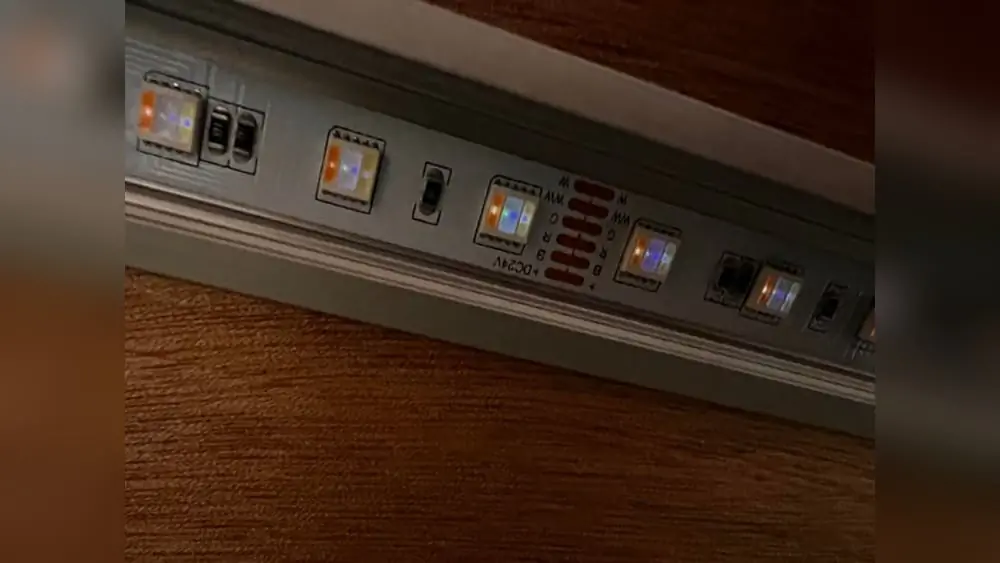
Is your Hue light refusing to come on when you need it most? How to Fix Hue Light Doesn’t Come on work as expected, especially when you rely on it to set the perfect mood or keep your home safe.
But don’t worry—you’re not alone, and fixing this issue might be simpler than you think. In this guide, you’ll discover easy, step-by-step solutions to get your Hue lights shining again quickly. Whether it’s a connectivity glitch, a bulb reset, or a bridge issue, you’ll learn exactly what to do to bring your smart lighting back to life.
Keep reading to regain full control of your Hue lights and enjoy hassle-free illumination once more.
Common Reasons Hue Light Won’t Turn On
Hue lights add convenience and style to any room. Sometimes, these lights fail to turn on, causing frustration. Understanding common reasons for this issue helps in quick fixes. Troubleshooting starts by identifying the root cause. Here are the main causes why your Hue light won’t turn on.
Power Supply Issues
Power supply problems are a top cause of Hue lights not turning on. The bulb may not receive electricity due to a loose connection or a faulty socket. Check if the light switch is on and the bulb is properly screwed in. Sometimes, the circuit breaker might have tripped. Ensure the power source is stable and working.
Connectivity Problems
Hue lights depend on a strong connection to the Hue Bridge or your smartphone. Weak Wi-Fi or Bluetooth signals can prevent the light from responding. Make sure your device is within range and connected to the same network. Restarting the router or the Hue Bridge often restores connectivity. Avoid interference from other devices that use similar frequencies.
Bulb Hardware Faults
Hardware faults inside the bulb can stop it from lighting up. Bulbs can fail due to age, overheating, or manufacturing defects. Inspect the bulb for any physical damage or discoloration. Testing the bulb in another socket helps confirm if the problem is with the bulb or the fixture. Replace the bulb if it shows signs of failure.
App And Firmware Glitches
Software issues in the Hue app or bulb firmware sometimes block the light from turning on. Outdated or corrupted software causes the bulb to behave erratically. Check for updates in the Hue app and install them promptly. Restarting the app or your phone can clear minor glitches. Resetting the bulb through the app may also fix the issue.
Power Cycling Your Hue Lights
Power cycling your Hue lights can often fix issues where the lights don’t turn on. This simple process helps clear temporary glitches in the bulb or bridge. It resets the power flow, giving your lights a fresh start. Follow the steps below to power cycle your Hue lights in different ways.
Resetting Without A Bridge
You can reset Hue bulbs without using the Hue Bridge. Turn the light bulb on and off quickly six times. Each on and off cycle should last about one second. The bulb will flash to show it is resetting. After the flash, the bulb is ready to connect again. This method works well for Bluetooth-enabled Hue bulbs.
Using The Hue Dimmer Switch
Hold the Hue Dimmer Switch close to the bulb you want to reset. Press and hold the “On” and “Off” buttons at the same time for about 10 seconds. The bulb will blink to confirm it has reset. This technique is useful if you have the Hue Dimmer Switch but no bridge. It quickly resets the bulb and clears any connection issues.
Power Cycling The Hue Bridge
Sometimes the problem lies with the Hue Bridge instead of the bulb. Unplug the Hue Bridge from the power outlet. Wait about 10 seconds to let it fully shut down. Plug the bridge back in and wait for all lights on the device to turn solid. This restart can fix network or communication problems between the bridge and bulbs. Power cycling the bridge often restores full control over your lights.
Resetting Hue Bulbs
Resetting Hue bulbs is a key step to solving issues with lights that do not turn on. This process clears any glitches or connection problems. It can restore your bulb to normal working order quickly. Different methods exist for resetting your Hue bulbs depending on your setup.
Manual Reset By On/off Cycling
Turn the Hue bulb on and off rapidly about six times. Each cycle should last about one second. After the sixth cycle, leave the bulb on. The bulb will blink to show it is resetting. This method works without any app or bridge. It is simple and fast for most Hue bulbs.
Reset Via Philips Hue App
Open the Philips Hue app on your phone or tablet. Go to the Settings section and find Lights. Tap Add Lights to search for your bulb. Once the bulb appears, select it and choose Reset. This removes the bulb from your system and clears errors. Use this method if you control your bulbs with Bluetooth or the Hue Bridge.
Factory Reset Options
Some bulbs allow a factory reset using a Hue dimmer switch. Hold the dimmer switch near the bulb and press the reset button. The bulb will flash to confirm the reset. Factory resets erase all settings and return the bulb to its original state. This method is useful when other resets fail. Check your bulb model to see if this option is available.
Troubleshooting Connectivity
Troubleshooting connectivity is a key step to fixing your Hue light not turning on. Connectivity issues often cause bulbs to lose communication with the Hue Bridge or app. This section guides you through simple checks and fixes. Follow these steps carefully to restore the connection and get your lights working again.
Checking Wi-Fi and Bridge Connection
Start by verifying your Wi-Fi network is active and stable. The Hue Bridge must be connected to the same Wi-Fi as your phone or tablet. Check the Ethernet cable connecting the Bridge to your router. Ensure the Bridge’s lights show it is powered and connected. Restart your router and Bridge if needed. A fresh connection can solve many issues.
Re-adding Bulbs To The App
Sometimes bulbs lose connection to the app. Open the Hue app and try to find missing lights. Remove the bulbs that do not respond and add them again. This process refreshes the connection between the bulb and the Bridge. Follow the app’s instructions to complete the re-adding process. Make sure bulbs are powered on during this step.
Ensuring App And Firmware Updates
Outdated software can cause connection problems. Check the Hue app for updates and install any available. Also, verify the firmware of your Hue Bridge and bulbs. The app will notify you if updates are needed. Keeping everything updated improves stability and performance. Regular updates prevent many common issues.
Preventing Future Issues
Preventing future issues with your Hue lights ensures long-lasting performance and fewer hassles. Taking simple steps helps keep your bulbs working well. Protecting them from common problems is key. Learn how to safeguard your Hue lights below.
Protecting Bulbs From Power Surges
Power surges can damage Hue bulbs quickly. Use surge protectors to shield your lights from sudden voltage spikes. Avoid plugging bulbs directly into outlets without protection. This simple step lowers the risk of bulb failure and extends their lifespan.
Avoiding Enclosed Fixtures
Hue bulbs need good airflow to stay cool. Enclosed fixtures trap heat, which harms the bulbs inside. Install your bulbs in open or well-ventilated fixtures. This reduces overheating and keeps your lights running smoothly longer.
Managing Environmental Factors
Extreme heat, moisture, and dust affect Hue bulb performance. Keep bulbs away from damp areas and direct sunlight. Regularly clean them with a dry cloth to prevent dust build-up. Proper care in their environment helps avoid common problems and improves reliability.
Bulb Lifespan And Replacement
The lifespan of a Hue light bulb plays a crucial role in its performance. Over time, even smart bulbs can wear out and stop working. Knowing when to replace your bulb can save you time and frustration. Understanding the factors that affect bulb longevity helps you extend its use. Also, recognizing signs that indicate a bulb needs replacement avoids unexpected outages. Many Hue bulbs come with warranty and support options to protect your purchase.
Factors Affecting Bulb Longevity
Usage frequency affects how long your Hue bulb lasts. The more hours it stays on, the shorter its lifespan. Heat exposure can damage LED bulbs over time. Using bulbs in sealed fixtures traps heat, reducing lifespan. Power surges or unstable electrical supply can cause early failure. Environmental conditions like humidity and dust also impact bulb health. Proper installation and ventilation help bulbs last longer.
Signs A Bulb Needs Replacement
Flickering or dimming light often signals that a bulb is failing. Bulbs that fail to turn on after several attempts likely need replacement. Color shifting or inconsistent brightness also indicates wear. If the bulb feels unusually warm, it may be overheating. Strange noises or buzzing sounds come from faulty bulbs. Sudden outages without a clear cause often mean the bulb is at fault.
Warranty And Support Options
Philips Hue bulbs usually come with a limited warranty. This warranty covers defects and early failures. Check the warranty period when buying your bulb. Contact Philips support for help with faulty bulbs. Many retailers offer return or exchange policies. Keep your purchase receipt to claim warranty services. Firmware updates from the Hue app can improve bulb performance.

Frequently Asked Questions
How To Fix Unresponsive Hue Lights?
Power cycle the Hue bulbs and bridge. Check the bridge Wi-Fi connection and update the Hue app. Reset bulbs by toggling on/off six times quickly. Re-add bulbs in the app to restore responsiveness.
How To Reset A Philips Hue Light?
To reset a Philips Hue light, turn it on and off six times quickly. The bulb will flash, confirming the reset. Alternatively, use a Hue dimmer switch by holding it near the bulb and pressing the reset buttons until it blinks.
For Bluetooth bulbs, reset via the Hue app settings.
What Is The Lifespan Of A Hue Bulb?
Philips Hue bulbs typically last around 25,000 hours. Avoid heat, humidity, and power surges to maximize lifespan.
How Do I Fix An Unresponsive Smart Bulb?
Power cycle the bulb and bridge by turning them off and on. Check Wi-Fi and update the Hue app. Reset the bulb by toggling it six times rapidly. Re-add the bulb in the app to restore the connection.
Conclusion
Troubleshooting Hue lights may seem tricky, but it is usually simple. Start by checking power and connections first. Reset bulbs by turning them on and off quickly. Use the Hue app to manage and add lights again. Keep your app and bridge updated for smooth use.
Small fixes often restore your lighting in minutes. Stay patient and follow each step carefully. Your Hue lights will shine bright again soon.