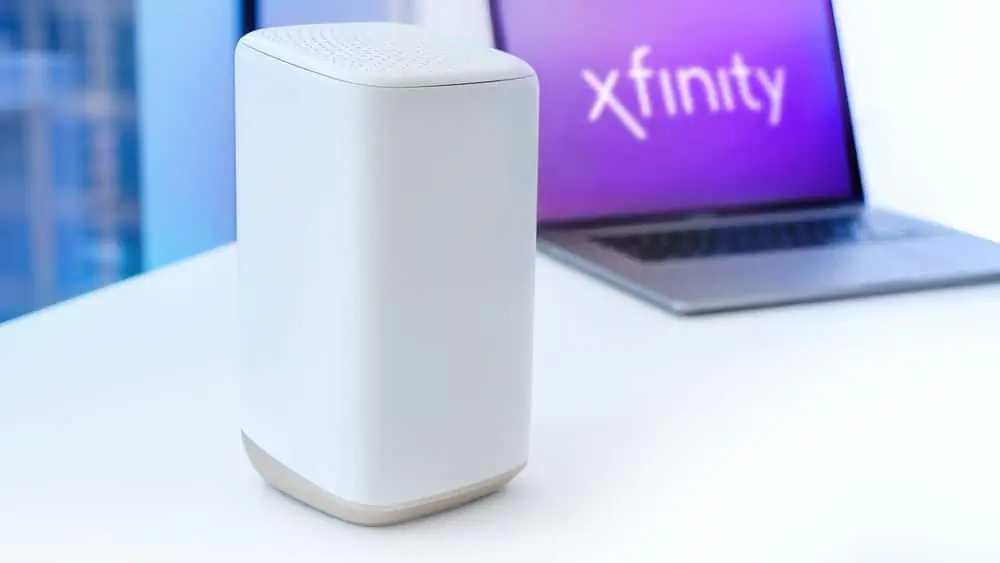
How to fix Blinking Green Light Xfinity and leave you without internet? It’s frustrating when your connection suddenly drops, and that blinking green light is your modem’s way of telling you something’s wrong.
But don’t worry—you don’t need to be a tech expert to fix it. In this guide, you’ll learn simple, effective steps to get your internet back up and running quickly. From checking cables to using the Xfinity app, you’ll discover easy fixes that anyone can do.
Keep reading, and you’ll be back online before you know it.
Blinking Green Light Meaning
The blinking green light on your Xfinity modem shows it is trying to connect to the internet. This light means the device is working but not fully connected. It often signals a problem with the internet connection. Understanding this helps you know what steps to take next.
Sometimes, the blinking green light means the modem is searching for a signal. Other times, it shows the connection is weak or unstable. Knowing what causes this blinking helps fix the issue quickly.
Connection Issues
A blinking green light usually means connection problems. Your modem may not get a strong signal from the provider. It tries to connect but fails, causing the light to blink.
Loose or damaged cables stop the modem from connecting properly. Power or Ethernet cables can become loose, cutting the signal. This causes the blinking green light to appear.
Temporary outages from your internet provider also cause this blinking. The modem tries to reconnect while the service is down. This blinking will stop once the service returns.
Common Causes
Loose cables are the most common cause. Check the coaxial cable and power cord for tight connections. A weak or broken cable can block the internet signal.
Modem overheating may cause it to blink green. Overheating affects device performance and can interrupt connections. Make sure your modem is in a cool, ventilated place.
Signal interference from nearby electronics or splitters can disrupt the connection. Faulty splitters reduce signal strength and cause blinking lights.
Software glitches or outdated firmware in the modem can trigger blinking. Restarting or updating the modem often resolves this problem.
Basic Fixes To Try First
The blinking green light on your Xfinity modem signals a connection problem. Many issues are simple to fix with basic steps. Start with these easy checks to avoid more complex solutions. These fixes often restore your internet quickly.
Check And Tighten Cables
Loose or faulty cables often cause the blinking green light. Examine all cables connected to your modem. Make sure the coaxial cable fits tightly at the wall outlet and the modem. Check the Ethernet cable if you use one. Also, ensure the power cable is secure. If any cable looks worn or damaged, replace it. Secure connections improve signal strength and stability.
Power Cycle Modem
Resetting your modem clears temporary glitches. First, unplug the modem from the power outlet. Wait about 30 seconds to one minute. Then, plug it back in. Wait for the modem to fully restart. This process refreshes the connection and often stops the blinking green light. It is a quick and effective step.
Verify Service Outages
Sometimes, the issue is outside your home. Check if Xfinity has service outages in your area. Use the Xfinity app or website for updates. Enter your zip code or address to see outage maps. If there is an outage, you must wait until Xfinity fixes it. Knowing this saves time and avoids unnecessary troubleshooting.
Using The Xfinity App
The Xfinity app offers a simple way to fix a blinking green light on your modem. It helps you find and solve connection issues quickly. The app connects directly to your modem and guides you step-by-step. This saves time and avoids the need to call support.
Using the app, you can run tests and get clear instructions. It shows exactly what to check and how to fix common problems. Even beginners find it easy to use. The app works on both Android and iOS devices.
Troubleshoot Tools
The Xfinity app includes built-in troubleshooting tools. These tools scan your modem’s status and detect errors. They check your internet connection and signal strength. If a problem appears, the app explains what it is.
You can start a troubleshoot scan with just one tap. The app will test your modem’s power, cables, and settings. It also looks for service outages in your area. This helps you know if the issue is on your end or with Xfinity.
Guided Fix Steps
After running the troubleshooting tools, the app gives guided fix steps. These steps show you how to fix the blinking green light. They include simple actions like rebooting the modem or checking cables. The app uses clear, easy words to explain each step.
If the problem needs more help, the app may suggest contacting support. It can also schedule a technician visit if needed. Following these guided steps often restores your internet quickly and easily.

Advanced Troubleshooting
Advanced troubleshooting helps solve stubborn blinking green light issues on Xfinity devices. It digs deeper into possible causes beyond basic checks. These steps require careful inspection and some technical know-how. Follow each method closely for the best results.
Inspect And Bypass Splitters
Splitters can weaken your internet signal. Check if your coaxial cable connects through a splitter. Remove or bypass the splitter temporarily. Connect the cable directly to the modem. Watch the light status after this change. If the blinking stops, replace the splitter with a high-quality one.
Reduce Network Overload
Too many devices on your network can cause congestion. Unplug or disconnect devices you recently added. Restart your modem and see if the green light stops blinking. Limit heavy data use during troubleshooting. This helps identify if overload is the cause.
Firmware And Settings Check
Outdated firmware can cause connection problems. Log in to your modem’s admin panel. Check for available firmware updates and install them. Also, review your device’s settings for any unusual changes. Reset settings to default if unsure. Firmware updates often fix bugs causing blinking lights.
When To Contact Support
The blinking green light on your Xfinity modem signals connection trouble. Most issues you can fix yourself by checking cables or rebooting. Sometimes, problems run deeper. Knowing when to contact Xfinity support saves time and stress. Support steps in when the issue is beyond simple fixes. Their tools and expertise help restore your internet quickly.
Signal And Provisioning Issues
A blinking green light might mean a signal problem. This happens if the modem can’t get a strong signal from Xfinity. Sometimes, your account settings may not be updated properly. This is called a provisioning issue. If you see green and orange blinking together, call support. They can check your signal levels and fix account problems. Trying fixes at home won’t solve these issues.
Outside Home Problems
Issues outside your house often cause the blinking green light. Damage to cables or equipment on the street can block your internet. Weather or construction might have cut or loosened lines. These problems need a technician’s visit. Contact Xfinity support to report the issue. They send a professional to inspect and repair outside wiring. This step is necessary when home troubleshooting fails.

Preventive Tips
Preventing the blinking green light on your Xfinity modem helps maintain steady internet service. Small, regular efforts avoid many common issues. Keeping equipment and software in good shape reduces connection problems. Follow these tips to keep your modem running smoothly.
Regular Cable Maintenance
Check all cables often. Make sure coaxial and power cables are tightly connected. Loose cables can cause signal loss and blinking lights. Replace damaged cables quickly. Avoid bending or pinching cables. Keep cable ends clean and free of dust. Proper cable care improves signal strength and modem performance.
Keep Firmware Updated
Firmware controls your modem’s functions. Updates fix bugs and improve stability. Check for updates regularly through the Xfinity app or website. Install updates as soon as they are available. Running the latest firmware lowers the chance of blinking green lights. Automatic updates may be enabled to simplify this process.

Frequently Asked Questions
Why Is My Xfinity Router Blinking Green Light?
A blinking green light on your Xfinity router means it’s trying to connect to the internet. Check all cables are secure. Restart the modem by unplugging and plugging it back in. Use the Xfinity app to check for outages or run diagnostics.
Contact support if the issue continues.
Why Is My Router Blinking Green But No Internet?
A blinking green router means it’s trying to connect but lacks internet. Check cables, reboot the modem, or verify outages. Use your provider’s app for troubleshooting or contact support if the issue persists.
How Long Should My Xfinity Modem Blink Green Before Connecting?
Your Xfinity modem should blink green for about 2 to 5 minutes before connecting. Prolonged blinking may indicate connection issues. Check cables and reboot the modem if blinking continues. Use the Xfinity app to diagnose or contact support for persistent problems.
Why Is My Xfinity Modem Blinking Green?
A blinking green light means the modem is trying to connect to the internet. It often indicates loose cables, a service outage, or a temporary glitch. Checking connections and rebooting the modem usually resolves the issue.
Conclusion
A blinking green light on your Xfinity modem usually signals connection trouble. Start by checking all cables and restarting your modem. Use the Xfinity app to spot outages or run troubleshooting steps. Remove any splitters or disconnect extra devices if needed.
Persistent blinking may mean a deeper network issue. In that case, contacting Xfinity support helps resolve the problem quickly. These simple steps keep your internet running smoothly and reduce frustration. Stay patient and follow the guide for the best results.